Changing languages
More actions
Team Fortress 2 Classic is a game that supports many languages. It currently has 17 supported languages. Some are out of date due to new updates.
If you want to contribute and translate a new language or update an out-dated one, go to Creating translations.
Languages
Below is a table of all currently supported language translations for the game.
In order of ISO 639-3 codes, click on the table headers to reorder the table
| Name of Language | Supported Version |
|---|---|
| Bulgarian | Partially Supported up to Version 2.2.0 (missing some content) |
| German | Fully Supported |
| English | Fully Supported |
| Spanish | Fully Supported |
| Finnish | Fully Supported |
| French | Fully Supported |
| Hungarian | Fully Supported |
| Italian | Supported up to Version 2.0.0 |
| Polish | Fully Supported |
| Portuguese | Fully Supported |
| Brazilian Portuguese | Fully Supported |
| Romanian | Supported up to Version 2.1.0 |
| Russian | Fully Supported |
| Thai | Fully Supported |
| Ukrainian | Supported up to Version 2.1.0 |
| Simplified Chinese | Fully Supported |
| Traditional Chinese | Supported up to Version 2.1.0 |
The Source Engine currently supports 27 total languages however Team Fortress 2 Classic does not. The languages without translation are: Arabic, Czech, Danish, Greek, Latin American Spanish, Japanese, Korean, Dutch, Norwegian, Swedish, Turkish and Vietnamese.
Changing In-Game Language
To change Team Fortress 2 Classic's language, you have to do it via Source SDK Base 2013 Multiplayer. This is the application that runs when you use TF2C, it controls the language option.
Steps (see images below for help)
- Navigate to Source SDK Base 2013 Multiplayer on Steam. You may need to tick the Tools category in the filters which are located under the Home button on the library page.
- Click the Gear icon (titled Manage) on the Source SDK Base 2013 Multiplayer's page. This is located on the right hand side of the page and next to an Info icon and Heart icon.
- Click on the Properties button at the bottom of the drop down. This will open a new window.
- Click on the General tab.
- Click on Language.
- Navigate to your language and select it. (Make sure your language is supported in TF2C using the table above)
Now when booting Team Fortress 2 Classic, it will have changed to your selected language.
-
 Step 1: The Source SDK Base 2013 Multiplayer bar on the side
 -
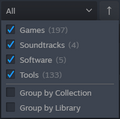 Step 1: The filters
 -
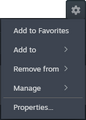 Step 2 & 3: The Gear icon and Properties in drop down
 -
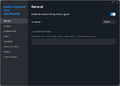 Step 4 & 5: The pop up window on General tab
 -
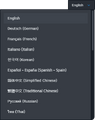 Step 6: Selecting a language


An alternate way to achieve this is to change language through Source SDK Base 2013 Multiplayer's settings/options menu through the Audio tab but this is a longer method and requires an application restart.